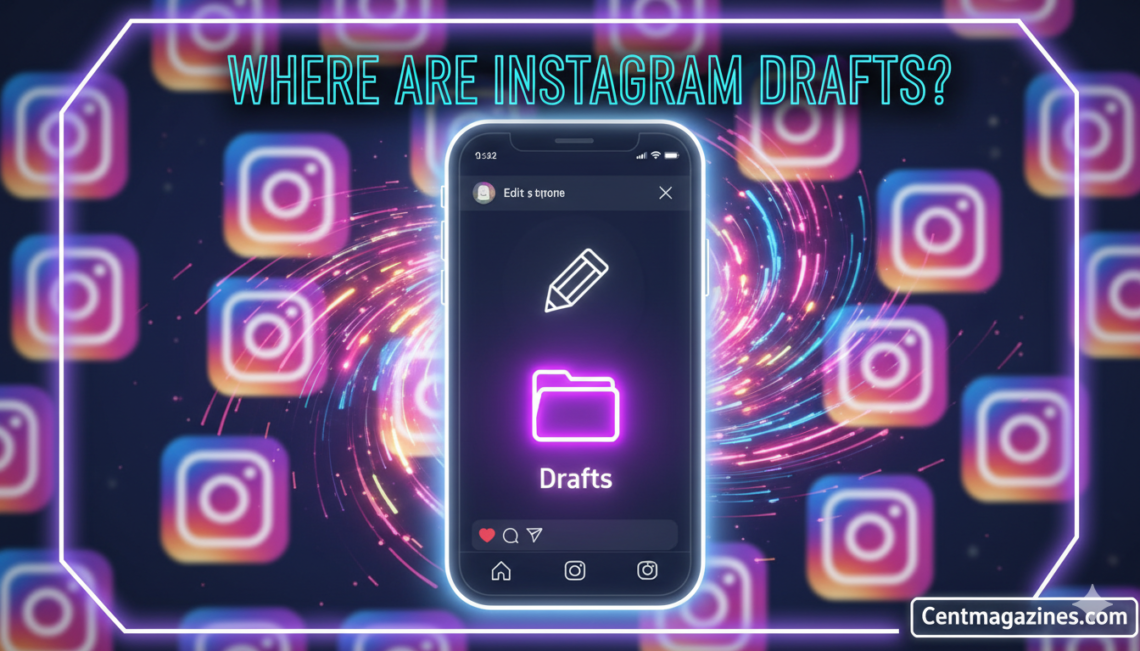
Where are drafts on Instagram Android is one of the most frequently asked questions by Instagram users who want to find their saved content.
Instagram drafts allow you to prepare posts, Reels, and Stories in advance without publishing them immediately, making content creation more efficient and flexible.
Understanding how to locate, manage, and utilize your drafts on Android devices can significantly improve your Instagram workflow and help you maintain a consistent posting schedule throughout 2026.
Table of Contents
Understanding Where Are Drafts on Instagram Android
Instagram drafts are unpublished posts stored locally on your device. They allow you to save your work-in-progress content for later completion or publication. This feature is essential for content creators and businesses.
Android users often struggle to locate their drafts after saving them. The draft location isn’t immediately obvious in the Instagram interface. Learning the exact navigation path saves time and frustration.
Drafts on Android function similarly to iPhone but with slight interface differences. The storage mechanism remains the same across both platforms. Understanding these nuances helps optimize your content workflow.
How Instagram Stores Drafts on Android
Instagram drafts are stored in your device’s local storage, not on Instagram’s servers. This means drafts are tied to your specific device and account combination. Clearing your cache or uninstalling the app will delete all saved drafts.
The local storage approach gives you quick access to drafts. However, it also means drafts don’t sync across multiple devices. If you switch phones, your drafts won’t transfer automatically.
Instagram allocates specific space in your app data for draft storage. The exact file location is within the Instagram app’s private directory. Users cannot directly access these files through file managers.
Step-by-Step Guide to Find Drafts on Android
Finding Post Drafts
Open the Instagram app on your Android device first. Tap the plus (+) icon at the bottom center of your screen. This initiates the content creation process.
Select “Post” from the options that appear at the bottom. The screen will show your phone’s gallery with your photos and videos. Look for the “Drafts” tab located at the top of this screen.
Tap on the “Drafts” tab to view all your saved post drafts. You’ll see thumbnails of all posts you’ve saved without publishing. Select any draft to continue editing or post immediately.
Accessing Reel Drafts
Navigate to the Reels creation section by tapping the plus (+) icon. Swipe to select “Reel” from the bottom menu options. The interface opens your camera or gallery view.
Your saved Reel drafts appear in a dedicated section when you tap the gallery icon. Instagram may also prompt you about unfinished Reels when creating new content. This feature helps you never lose track of video drafts.
Select any Reel draft to resume editing where you left off. You can add music, effects, text, or stickers before publishing. The editing capabilities remain fully functional for draft content.
Locating Story Drafts
Tap the plus (+) icon next to “Your Story” at the top. This opens your camera interface for creating Instagram Stories. The gallery icon appears in the bottom-left corner of your screen.
Tap the gallery icon to access your phone’s media library. Story drafts appear in a separate tab next to your regular gallery. The drafts tab shows how many days remain before expiration.
Story drafts automatically delete after seven days as a built-in limitation. Instagram alerts you before deletion occurs with countdown notifications. This temporary nature requires more active draft management for Stories.
Creating Instagram Drafts on Android
Creating Post Drafts
Start by selecting or capturing the photo or video you want to post. Tap “Next” to proceed to the editing screen where filters appear. Apply any desired filters, adjustments, or edits to your content.
You must make at least one edit for the draft option to become available. Without edits, Instagram won’t offer the save draft functionality. Even minor adjustments like brightness changes will activate this feature.
Tap the back arrow in the top-left corner after editing. A pop-up menu appears with three options including “Save Draft.” Select this option to save your work without posting.
Saving Reel Drafts
Record or select video clips for your Reel as you normally would. Add music, effects, text overlays, and any desired creative elements. The editing interface provides comprehensive tools for Reel customization.
When you’re ready to save without posting, tap the back arrow button. The same pop-up menu appears offering the save draft option. Your Reel saves with all edits and additions intact.
Reel drafts preserve all audio selections, effects, and timing adjustments you’ve made. When you return to edit, everything remains exactly as you left it. This allows for gradual refinement of video content.
Story Draft Creation
Create your Story by recording video or selecting photos from your gallery. Add stickers, text, polls, questions, or any interactive elements you want. The creative tools remain fully functional during draft creation.
Apply filters, draw on your Story, or add location tags as needed. All these elements save when you create a draft. The preservation of these details maintains your creative vision.
Tap the X button to exit without posting your Story immediately. Instagram asks if you want to save it as a draft. Confirm to store your Story for publishing within seven days.
Editing Instagram Drafts on Android
Modifying Post Drafts
Access your draft by following the location steps outlined earlier. Tap on the specific draft you want to modify from your saved collection. The draft opens in edit mode with all previous changes visible.
You can change filters, adjust image settings, or apply new edits. The caption field remains editable allowing content refinement before posting. Location tags and user tags can be added or modified.
Instagram allows multiple editing sessions for a single draft. Each save preserves your latest changes without losing previous work. This iterative approach supports perfectionist content creation.
Updating Reel Drafts
Open your Reel draft from the drafts section in Reels. All previously added clips, music, and effects load in the editor. You can add new clips or remove existing ones as needed.
Text overlays, stickers, and timing can all be adjusted post-saving. The full editing suite remains available for draft refinement. Audio tracks can be changed or updated with trending sounds.
Preview your Reel multiple times before finalizing for publication. The preview function shows exactly how your content will appear. This ensures quality control before posting to your followers.
Adjusting Story Drafts
Story drafts open with all original elements intact when accessed. You can add additional stickers, text, or drawing elements to enhance your content. The layering system allows complex Story creation across multiple sessions.
Swipe through your gallery to add more photos or videos to your Story. Draft Stories support multi-slide creation and editing capabilities. Each slide can be individually customized before posting.
Remember the seven-day expiration timer when planning Story draft edits. Complete and post your Stories before they automatically delete. The countdown helps you prioritize which drafts need immediate attention.
Deleting Instagram Drafts on Android
Removing Individual Drafts
Navigate to your drafts section following the standard access method. Find the specific draft you want to delete from your collection. Tap “Manage” or “Edit” in the top-right corner of the drafts screen.
Select the checkbox next to the draft(s) you want to remove. Multiple drafts can be selected simultaneously for bulk deletion. Tap “Done” or the trash icon to confirm deletion.
A confirmation pop-up appears asking you to verify the deletion. Tap “Discard” to permanently remove the selected draft(s). Remember that deletion is irreversible on Android with no recovery option.
Clearing All Drafts at Once
Go to your Android device’s Settings app outside of Instagram. Navigate to “Apps” or “Application Manager” depending on your Android version. Find and select Instagram from your list of installed applications.
Tap on “Storage” or “Storage & Cache” within Instagram’s app settings. Select “Clear Cache” to remove all temporary files including all drafts. This action deletes every saved draft simultaneously.
This method is drastic and should only be used when necessary. All drafts disappear permanently without individual selection options. Consider screenshot-ing or exporting content before clearing cache if you want to preserve ideas.
Managing Draft Space
Regularly review your drafts to remove outdated or unnecessary content. Excessive drafts can consume device storage space over time. Periodic cleanups maintain optimal app performance.
Delete drafts that are no longer relevant to your content strategy. Old seasonal content or expired promotional material takes up unnecessary space. Staying organized improves your content workflow efficiency.
Consider posting or exporting draft content before it becomes irrelevant. This prevents draft accumulation and wasted creative effort. An active draft management routine supports better content planning.
Common Issues with Instagram Drafts on Android
Disappearing Drafts
Logging out of your Instagram account causes all drafts to delete automatically. Instagram doesn’t warn users about this before logout occurs. Always post or export important drafts before logging out.
Uninstalling the Instagram app results in permanent draft loss. The local storage system means drafts aren’t cloud-backed or saved remotely. Reinstalling the app starts with a completely clean slate.
App updates sometimes cause draft glitches or disappearances unfortunately. While rare, this technical issue frustrates users who lose work. Keeping the app updated usually prevents such problems.
Draft Access Problems
Sometimes drafts don’t appear in the designated drafts tab. This glitch can occur due to app caching issues temporarily. Force-closing and reopening Instagram often resolves this display problem.
Very old drafts might not show up after extended periods. Instagram may have cleaning mechanisms for abandoned drafts on some devices. The exact timeframe varies but regular draft management prevents losses.
If drafts still don’t appear, try clearing your Instagram app cache. This resets the app without deleting your account data or posts. It’s a gentler solution than complete app reinstallation.
Storage Limitations
Instagram limits how many drafts you can save at one time. The exact number varies but most users can store dozens of drafts. Exceeding this limit may prevent new draft creation.
Large video files in Reel drafts consume significant storage space quickly. Monitor your device’s available storage to prevent draft creation failures. Freeing up space ensures smooth draft saving functionality.
Devices with limited internal storage may experience more draft-related issues. Expanding storage or using phones with more capacity helps avoid problems. Draft management becomes even more crucial on space-constrained devices.
Instagram Draft Best Practices for Android
Content Planning Strategy
Use drafts to batch-create content during your most productive times. Dedicate specific time blocks to creating multiple posts or Reels. This efficiency approach streamlines your content creation workflow significantly.
Organize drafts mentally by category or posting schedule even though Instagram doesn’t offer labels. Remember which drafts correspond to which campaigns or themes. Mental organization prevents confusion when you have many saved drafts.
Create drafts during inspiration moments to capture ideas immediately. Polish and refine them later when you have more time. This captures creativity while allowing for quality control separately.
Timing and Scheduling
Prepare drafts ahead of holidays, events, or product launches. This advance preparation reduces stress during busy promotional periods. Having ready-to-post content provides flexibility in your schedule.
While Instagram doesn’t natively schedule draft posting for personal accounts, you can manually post drafts at optimal times. Business and creator accounts have scheduling capabilities through Instagram’s Professional Dashboard. This feature helps maintain consistent posting schedules.
Set personal reminders to post drafts at peak engagement times. Consistency matters more than perfection in social media success. Regular posting from your draft queue builds audience expectations.
Quality Control Process
Review drafts with fresh eyes before posting them to your feed. Distance from initial creation provides better perspective on content quality. This review process catches errors or improvement opportunities.
Check captions for typos, grammar errors, and hashtag effectiveness before posting. Verify that tagged accounts and locations are correct and relevant. Quality assurance prevents embarrassing mistakes on your public profile.
Preview how your draft will look in your grid before publishing. Instagram’s preview feature shows how the post fits your aesthetic. This maintains visual cohesion across your entire Instagram presence.
Advanced Draft Features for Android
Multiple Draft Management
Instagram allows you to save multiple versions of similar content as separate drafts. This A/B testing approach lets you compare different edits or captions. Choose the best version when you’re ready to post.
Create variations with different filters or effects to see which looks best. Save each version as a separate draft for side-by-side comparison. This method supports data-driven content decisions.
Use drafts to prepare series or carousel posts in advance. Each image can be individually perfected before combining them into one post. This thorough approach ensures cohesive multi-image content.
Draft Collaboration Workflows
For business accounts managed by teams, drafts facilitate approval processes. Create content drafts and share screenshots with stakeholders for feedback. Implement changes before final posting to ensure brand consistency.
Agency professionals can create client drafts for review and approval. The draft system allows iterative refinement based on client feedback. This professional approach maintains quality standards while respecting client input.
Influencers working with brands can prepare sponsored content drafts for approval. Brands can review draft content before it goes live to their audiences. This collaboration protects both parties’ interests and reputations.
Cross-Platform Draft Considerations
Remember that Instagram drafts are device-specific and don’t sync across platforms. Content created as a draft on your Android phone won’t appear on your iPad. Plan accordingly when working across multiple devices.
If you need cross-device access, screenshot or export draft content externally. Cloud storage services can help transfer content between devices manually. This workaround compensates for Instagram’s lack of draft syncing.
Third-party social media management tools offer cloud-based draft storage alternatives. These professional platforms sync content across all devices and team members. They provide more robust draft management than Instagram’s native feature.
Instagram Drafts vs. Third-Party Tools
Native Draft Limitations
Instagram’s draft feature doesn’t support scheduling or calendar views. You can’t plan content weeks or months in advance visually. This limitation affects serious content creators and businesses significantly.
Story drafts expire after seven days automatically without extension options. This short timeframe pressures you to post or lose content. Professional planning tools don’t impose such restrictive deadlines.
No collaboration features exist within Instagram’s native draft system. Multiple team members can’t access or work on drafts together. This single-user limitation hampers team-based content strategies.
Third-Party Advantages
Professional social media management platforms offer comprehensive draft systems with advanced features. Calendar views, team collaboration, and unlimited storage enhance workflow significantly. These tools integrate with multiple social platforms simultaneously.
Tools like Later, Buffer, or Hootsuite provide draft syncing across devices. Your content remains accessible regardless of which device you’re using. This flexibility supports modern multi-device workflows.
Analytics integration helps you choose the best posting times for drafts. Data-driven scheduling maximizes engagement and reach for your content. Third-party tools provide insights Instagram’s native features lack.
Choosing the Right Solution
Casual users posting occasionally can rely entirely on Instagram’s free draft feature. The basic functionality meets simple content creation needs adequately. No additional tools or costs are necessary.
Serious content creators should consider hybrid approaches combining both methods. Use Instagram drafts for on-the-go content creation and third-party tools for planning. This balanced strategy leverages strengths of both systems.
Businesses and agencies almost always benefit from professional management tools. The investment pays off in efficiency, collaboration, and strategic planning capabilities. Evaluate options based on your specific needs and budget.
Troubleshooting Instagram Draft Issues on Android
Recovery Attempts for Lost Drafts
Check Instagram’s “Recently Deleted” folder in your account settings menu. While drafts themselves don’t go here, posted content does if deleted. This won’t recover drafts but might help with posted content.
Review your phone’s gallery for original photos or videos you used in drafts. You can recreate lost drafts from your original source files. This manual approach requires redoing edits and captions.
Contact Instagram Support if you experience repeated draft loss or glitches. While they may not recover individual drafts, reporting bugs helps improve the app. Persistent issues might indicate account-specific problems requiring technical assistance.
Preventing Future Draft Loss
Establish a routine of regularly posting or exporting your oldest drafts. This prevents accumulation and potential loss from technical issues. Active draft cycling maintains a fresh, relevant content queue.
Before major app updates or device changes, post all important drafts. Updates sometimes cause unexpected issues despite best intentions. Proactive posting protects your creative work from technical problems.
Back up your original source content externally for easy draft recreation if needed. Cloud storage of raw files provides insurance against draft loss. This redundancy ensures no creative effort goes completely to waste.
Optimizing Draft Performance
Keep your Instagram app updated to the latest version always. Updates include bug fixes and performance improvements affecting draft functionality. Automatic updates prevent version-related issues.
Periodically clear your Instagram cache to prevent glitches and slowdowns. This maintenance doesn’t delete drafts but removes corrupt temporary files. Regular cache clearing maintains optimal app performance.
Ensure your Android device has adequate free storage space available. Insufficient storage prevents new draft creation and causes app instability. Monitor storage levels to maintain smooth Instagram operation.
Future of Instagram Drafts in 2026
Expected Feature Updates
Instagram continues developing its draft system based on user feedback and needs. Potential improvements might include draft syncing across devices in future updates. Cross-platform accessibility would significantly enhance user experience.
Enhanced organization features like folders or tags for drafts could emerge soon. These categorization tools would help heavy draft users manage content more effectively. Better organization supports more sophisticated content strategies.
Integration with Instagram’s scheduling tools for all account types seems likely eventually. Currently limited to business accounts, broader access would democratize content planning. This expansion would benefit all Instagram users significantly.
AI and Automation Possibilities
Artificial intelligence could suggest optimal posting times for specific drafts automatically. Machine learning algorithms might analyze your audience engagement patterns for recommendations. This smart scheduling would maximize content performance effortlessly.
AI-powered caption generation might help complete drafts with suggested copy ideas. This assistance could overcome writer’s block and accelerate content finalization. Automation would complement rather than replace human creativity.
Automated hashtag recommendations based on draft content analysis seems plausible in 2026. AI could identify relevant trending hashtags matching your content perfectly. This optimization would improve discoverability without manual research.
Platform Evolution Trends
Instagram increasingly focuses on video content prioritization with Reels and Stories. Draft features may evolve to better support video creation workflows specifically. Enhanced video editing tools within drafts would reflect this trend.
Collaboration features might expand as Instagram targets professional creators and businesses more aggressively. Multi-user draft access and approval workflows could become native Instagram features. This evolution would reduce dependence on third-party management tools.
Integration with other Meta platforms like Facebook might enable content repurposing from drafts. Creating once and publishing across multiple platforms would save significant time. Cross-platform draft functionality aligns with Meta’s ecosystem strategy.
FAQs About Instagram Drafts on Android
Where exactly are Instagram drafts located on Android?
Instagram drafts on Android are found by tapping the plus (+) icon, selecting “Post,” “Reel,” or “Story,” then tapping the “Drafts” tab that appears at the top of your screen. The exact location depends on what type of content you’re creating.
Do Instagram drafts sync between Android and iPhone?
No, Instagram drafts do not sync between devices or operating systems because they’re stored locally on each device. If you switch phones or use multiple devices, your drafts won’t transfer automatically between them.
How long do Instagram drafts stay saved on Android?
Post and Reel drafts stay saved indefinitely until you delete them, uninstall the app, or clear your cache. However, Story drafts automatically delete after seven days with a countdown warning before expiration.
Can I recover deleted Instagram drafts on Android?
Unfortunately, no – once Instagram drafts are deleted, they cannot be recovered through any built-in method. Android lacks a recycle bin for Instagram drafts, making deletion permanent, so always double-check before discarding drafts.
Why did all my Instagram drafts disappear on Android?
Drafts disappear when you log out of Instagram, uninstall the app, clear the app cache, or sometimes after app updates. Since drafts store locally rather than on servers, these actions permanently delete all saved drafts.
How many drafts can I save on Instagram Android?
Instagram doesn’t publicly specify an exact limit, but users typically can save dozens of drafts without issues. The practical limit depends on your device’s available storage space and Instagram’s internal restrictions.
Can I schedule Instagram drafts to post automatically on Android?
Personal accounts cannot schedule drafts natively, but business and creator accounts can schedule posts through Instagram’s Professional Dashboard after creating them as drafts. Third-party tools also offer scheduling capabilities for all account types.
Do Instagram drafts take up phone storage space?
Yes, Instagram drafts are stored in your phone’s local storage within the Instagram app data. Video Reel drafts especially consume significant space, so managing drafts helps maintain adequate device storage.
Can I edit an Instagram draft after saving it?
Absolutely – access your saved draft, make any changes to filters, edits, captions, tags, or locations, then save again or post. Drafts support multiple editing sessions until you’re ready to publish.
What’s the difference between drafts and archived posts on Instagram?
Drafts are unpublished content saved for later posting, while archived posts are previously published content hidden from your profile but still accessible. Drafts have never been posted publicly, whereas archived posts were once live.
Conclusion
Where are drafts on Instagram Android becomes simple once you understand the navigation path through the plus (+) icon and content type selection.
Instagram drafts empower Android users to plan content strategically, maintain posting consistency, and perfect posts before publication without rushing creativity.
Mastering draft location, creation, editing, and management on your Android device transforms your Instagram presence from reactive to proactive, enabling professional-quality content planning that saves time and reduces stress throughout 2026 and beyond.